Non-Technical Onboarding (API Key Workflow)
This path is for users who call the GammaEdge API but do not work in the GammaEdge codebase.
You do not need to be a programmer for this setup. Everything you need is on this page. No downloads required.
5-minute checklist
- Generate your API key in the API tab of the web app.
- Choose any one setup method below, then save it as
GAMMAEDGE_API_KEY. - Confirm the key starts with
sk_. - Run one test request and confirm you get JSON back.
1. Generate your API key
- Claim the API role. Open the GammaEdge API page on Whop, pick your Discord account (or connect one) and click Claim Access. API access comes with GammaEdge Ultra.
- Sign in to the web app at app.gammaedge.us with the same Discord account. The first time, accept the GammaEdge EULA. You need to accept it before you can create a key.
-
Open the API tab (app.gammaedge.us/SPX?tab=api) and click Generate my API key.

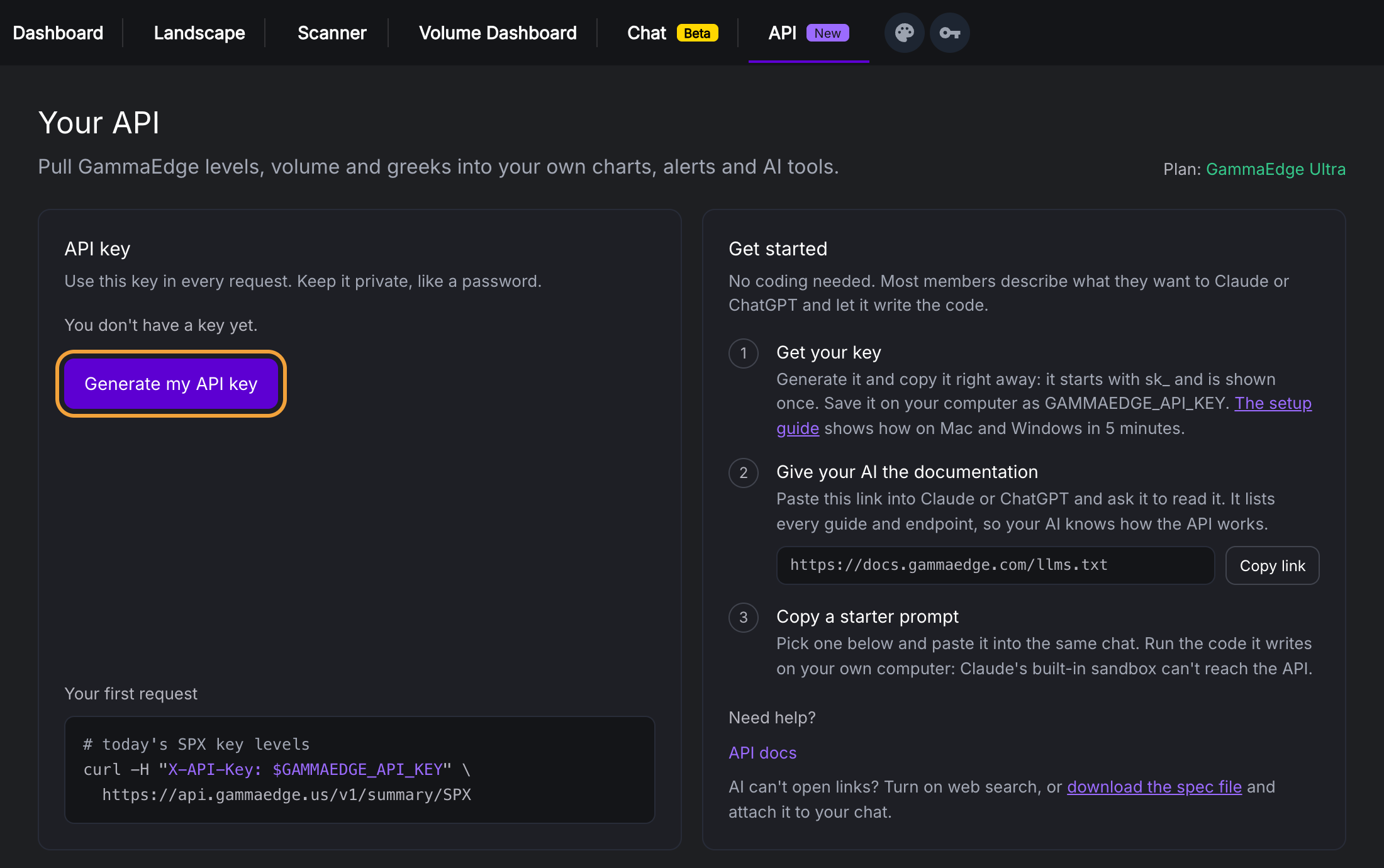 4. Copy the
sk_key immediately. It is shown once.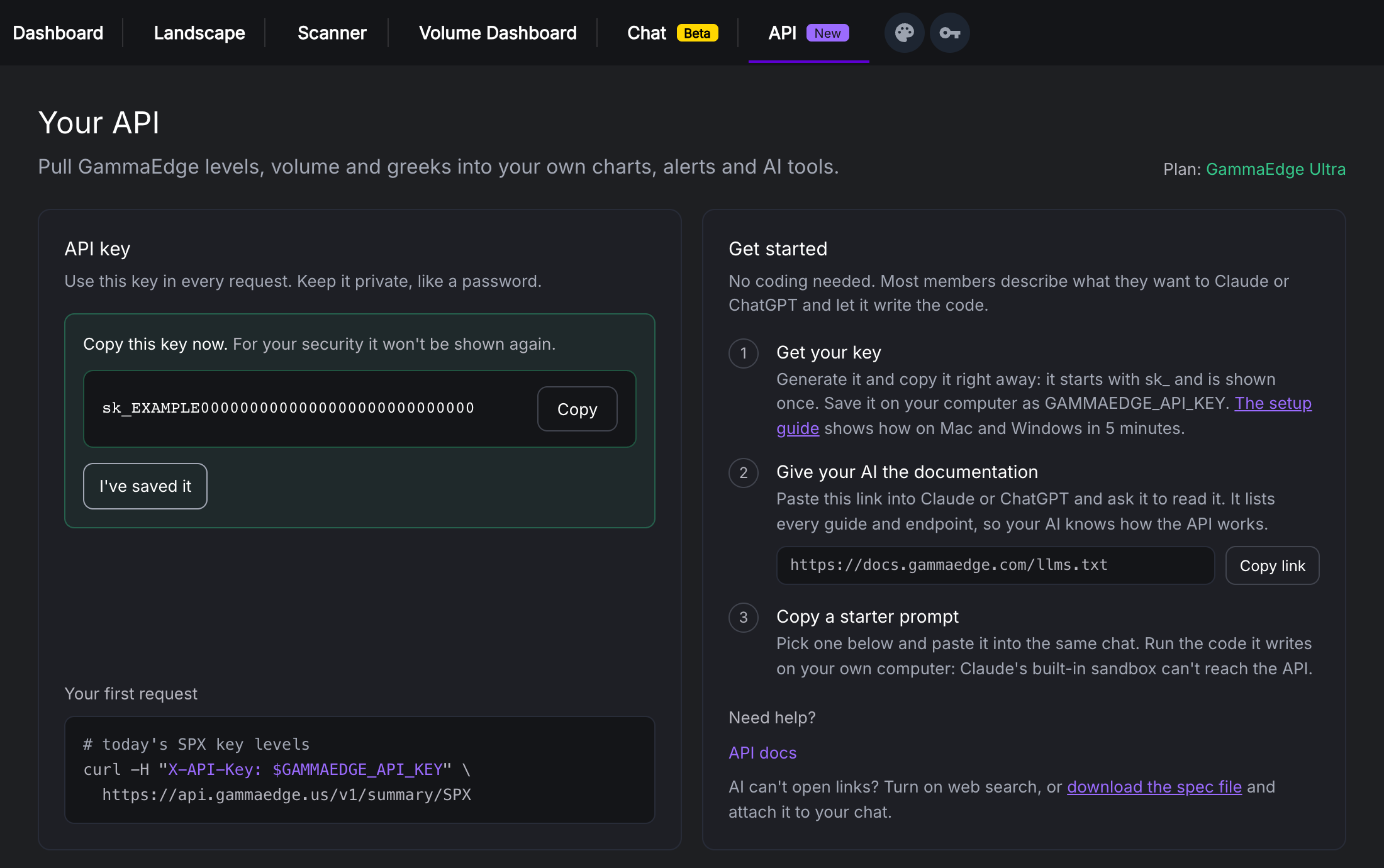
Your API key is the sk_... value shown in the API tab, and nothing else. Send it exactly
as copied, with nothing added before or after it.
2. Save your key so requests can use it
The key must be stored in an environment variable named
GAMMAEDGE_API_KEY so requests do not fail with an empty key.
Choose any one persistent method below to save your key permanently. A session-only Jupyter option is also available if you only need the key inside one notebook.
- Recommended: Windows no-coding path (Settings screens) — persistent
- Windows manual path (Command Prompt) — persistent
- macOS / Linux manual path (Terminal) — persistent
- Session-only: Jupyter path (copy/paste) — current notebook session only
None of the steps below display or store your full key on screen or in your shell history — only masked confirmation is shown.
Recommended: Windows no-coding path (Settings screens)
- Press the Windows key and type:
environment variables. - Click Edit the system environment variables.
- In the System Properties window, click Environment Variables...
- In the top box (User variables for ...), click New...
- Set:
- Variable name:
GAMMAEDGE_API_KEY - Variable value: your full
sk_...key - Click OK on all windows to save.
- Close any open Command Prompt windows.
- Open a new Command Prompt and run:
Setup is complete if it prints sk_.
Windows manual path (Command Prompt)
Prefer the Settings path above if you can
setx briefly displays the key on screen as you type/paste it and while
the command runs. If your screen might be shared, recorded, or visible to
others, use the Settings screens path
instead — the key never appears on screen there.
- Open Command Prompt.
- Run, replacing the placeholder with your real key:
- Close Command Prompt and open a new Command Prompt window.
-
Verify — this only prints the first 3 characters, never the full key:
echo %GAMMAEDGE_API_KEY:~0,3%
If it prints sk_ (and is not blank), setup is complete.
macOS / Linux manual path (Terminal)
For current terminal only, read the key without echoing it to the screen or writing it to your shell history:
Paste your key at the prompt (nothing will appear on screen) and press Enter.
To persist for future terminals, add it to your shell's profile file. Use
read -rs again so the key is never echoed or saved to your command history:
Use the profile file that matches your OS and shell — using the wrong one means the key won't be available in new terminal windows:
| OS + shell | Profile file |
|---|---|
| macOS, zsh (default since Catalina) | ~/.zshrc |
| macOS, bash | ~/.bash_profile |
| Linux, bash | ~/.bashrc |
| Linux, zsh | ~/.zshrc |
Not sure which shell you're using? Run echo $SHELL.
Then reload your shell and verify — this only prints the first 3 characters, never the full key:
If it prints sk_ (and is not blank), setup is complete.
Session-only: Jupyter path (copy/paste)
Session-only — not a persistent save
This sets the key only for the current Jupyter kernel. It is lost when you
restart the kernel, and it is not available to a terminal or curl
outside this notebook. For a permanent setup, use one of the persistent
methods above instead.
In a Jupyter cell, run:
import getpass
import os
os.environ["GAMMAEDGE_API_KEY"] = getpass.getpass("GammaEdge API key: ")
print(os.environ["GAMMAEDGE_API_KEY"][:3])
Setup is complete if it prints sk_.
3. Make your first request
You run the request by pasting one line into a command window on your computer.
- Press the Windows key, type
cmd, and press Enter. A black window opens: this is Command Prompt. (Use Command Prompt, not PowerShell; the line below is written for Command Prompt.) -
Copy this line, paste it into the window (Ctrl+V or right-click), and press Enter:
- Press Cmd+Space, type
Terminal, and press Return. A window opens: this is Terminal. -
Copy this line, paste it into the window (Cmd+V), and press Return:
The Windows and Mac lines differ only in how the key is written: %GAMMAEDGE_API_KEY%
on Windows, $GAMMAEDGE_API_KEY on Mac and Linux.
It worked if you see a long line of text that starts with
{"status":"completed","ticker":"SPX". That is the SPX summary as JSON.
If you see "Your API key is missing or invalid":
- Close the window and open a new one, then try again. A window that was already open when you saved your key can't see it.
- Check that the key is saved: run the check from
Save your key; it should print
sk_. - On Windows, make sure you used the Windows line (
%GAMMAEDGE_API_KEY%).
Or let an AI agent call it for you
You don't need to write or run any command yourself. Use an AI coding agent that can execute commands in your terminal — for example Claude Code, GitHub Copilot (agent mode), Cursor, or ChatGPT with code execution enabled — and let it figure out the request from the docs.
Ask the AI to call the API
Paste this prompt as-is:
I have an environment variable named
GAMMAEDGE_API_KEYalready set in my terminal. Read the GammaEdge API docs at https://docs.gammaedge.com/ and give me the summary for SPX
A capable AI agent will look up the right endpoint, run the request in your terminal
using your GAMMAEDGE_API_KEY environment variable, and paste back the summary it
received — you don't need to type or copy anything.
If your AI tool can only suggest commands rather than run them (for example, a
plain chat window with no code execution), ask it to run the request itself first;
if it truly can't, it should give you a single command that references
$GAMMAEDGE_API_KEY (macOS/Linux) or %GAMMAEDGE_API_KEY% (Windows) by name for you
to run — never one with the key value spelled out.
Keep your key safe while using AI agents
‼️ Never let your real API key appear in a chat
- Only ever mention the environment variable name (
GAMMAEDGE_API_KEY) in your prompt — never paste thesk_...value itself into Claude, ChatGPT, Copilot, or any other AI tool. - Anything you send to a hosted AI tool may be stored by that provider.
- Check the AI's response before trusting it: it should show a JSON result, not
your key. If a literal
sk_...string ever appears in the AI's output or in a command it suggests, treat that key as exposed — regenerate it immediately.
4. If authentication fails
- Confirm the header is exactly
X-API-Key. - Confirm the header holds only your
sk_...key, exactly as copied, with nothing added. - Confirm the variable is not empty (your check step should show
sk_). - If you regenerated your key, update the variable to the new value.
For details, see Authentication.
5. Validate usage and continue
- Use Rate Limits & Quotas to check usage.
- Use Making Requests for ticker and timestamp rules.
- Use Error Messages when a request fails.
- Use Code Examples for request patterns.
- Use Building with AI for a step-by-step guide to using AI agents with the API.
6. Safety checklist
- Keep keys in secure storage.
- Never put keys in source control.
- Rotate keys immediately if exposure is suspected.