Authentication
Every request needs your API key in the X-API-Key header — that's the whole setup:
On Windows
These examples are written for Mac and Linux. In Windows Command Prompt, put
the whole command on one line (drop the \ line break) and write the key as
%GAMMAEDGE_API_KEY% instead of $GAMMAEDGE_API_KEY. See
Make your first request.
How it works
A missing or invalid key returns 401 with error code 7000008, in the same
{ "error_code", "error_message" } envelope as every other error — branch on the code.
Your key is tied to a plan. Your plan decides two things:
- Which endpoints you can call. Calling an endpoint outside your plan returns
403with error code7000005. - How many requests you can make. See Rate Limits & Quotas.
Handling keys safely
‼️ Never expose your API key
Your API key is a secret — treat it like a password. Anyone who has it can use your quota and your data access.
- Send it only over HTTPS (the API is HTTPS-only).
- Store it in a secret manager or environment variable — never in source control, client-side bundles, or prompts you share.
- Rotate a key immediately if it may have been exposed: open the API tab in the web app (app.gammaedge.us/SPX?tab=api) and generate a new key. The old key stops working immediately and the new one is shown once — copy it right away.
Getting or rotating a key
You manage your own key in the web app, no support ticket needed. API access comes with GammaEdge Ultra.
- Claim the API role on the GammaEdge API page on Whop, then sign in to app.gammaedge.us with the same Discord account.
-
Open the API tab (app.gammaedge.us/SPX?tab=api) and click Generate my API key. Generate again to replace an existing key.

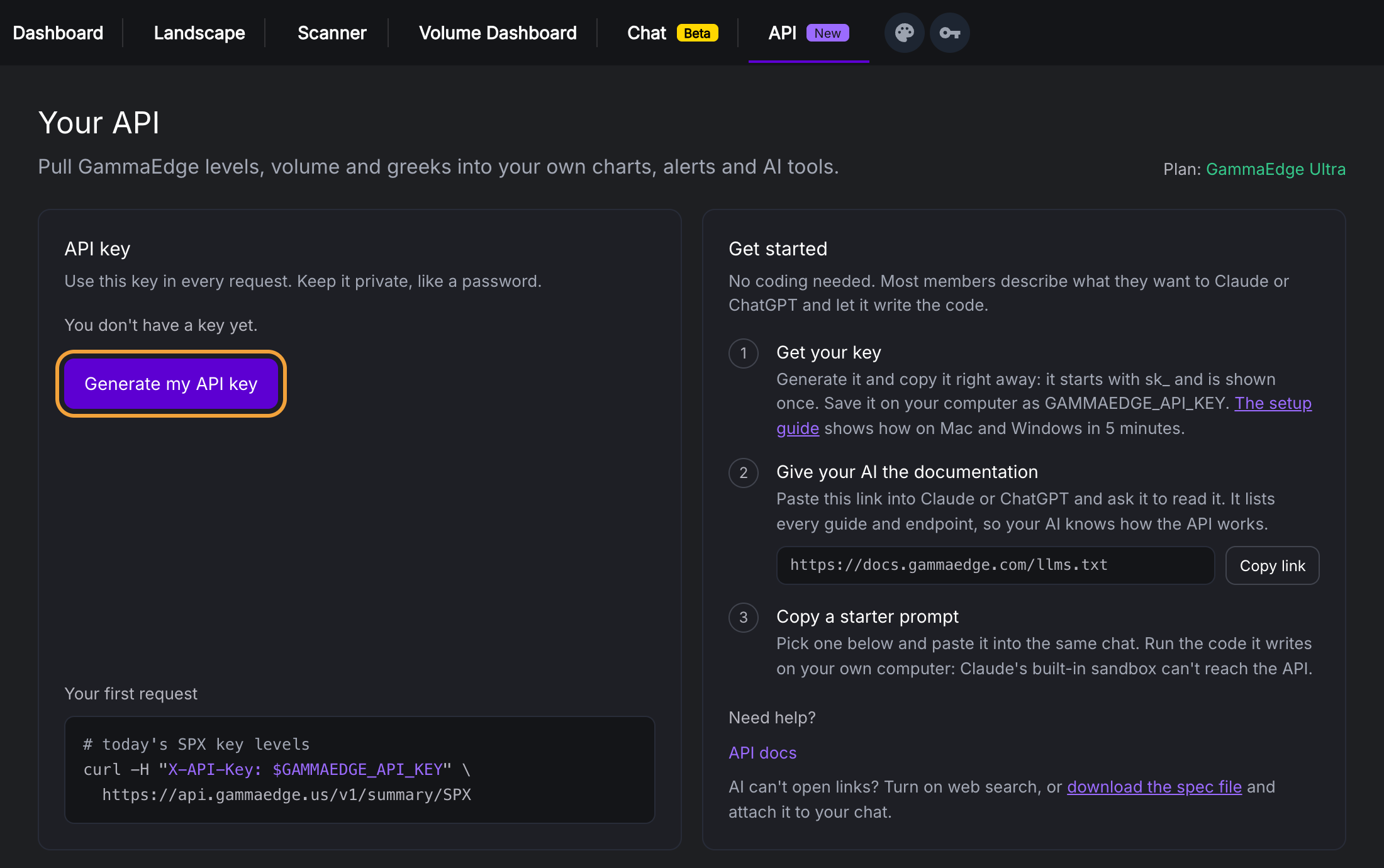 3. Copy the
sk_-prefixed secret when it appears. It is shown only once.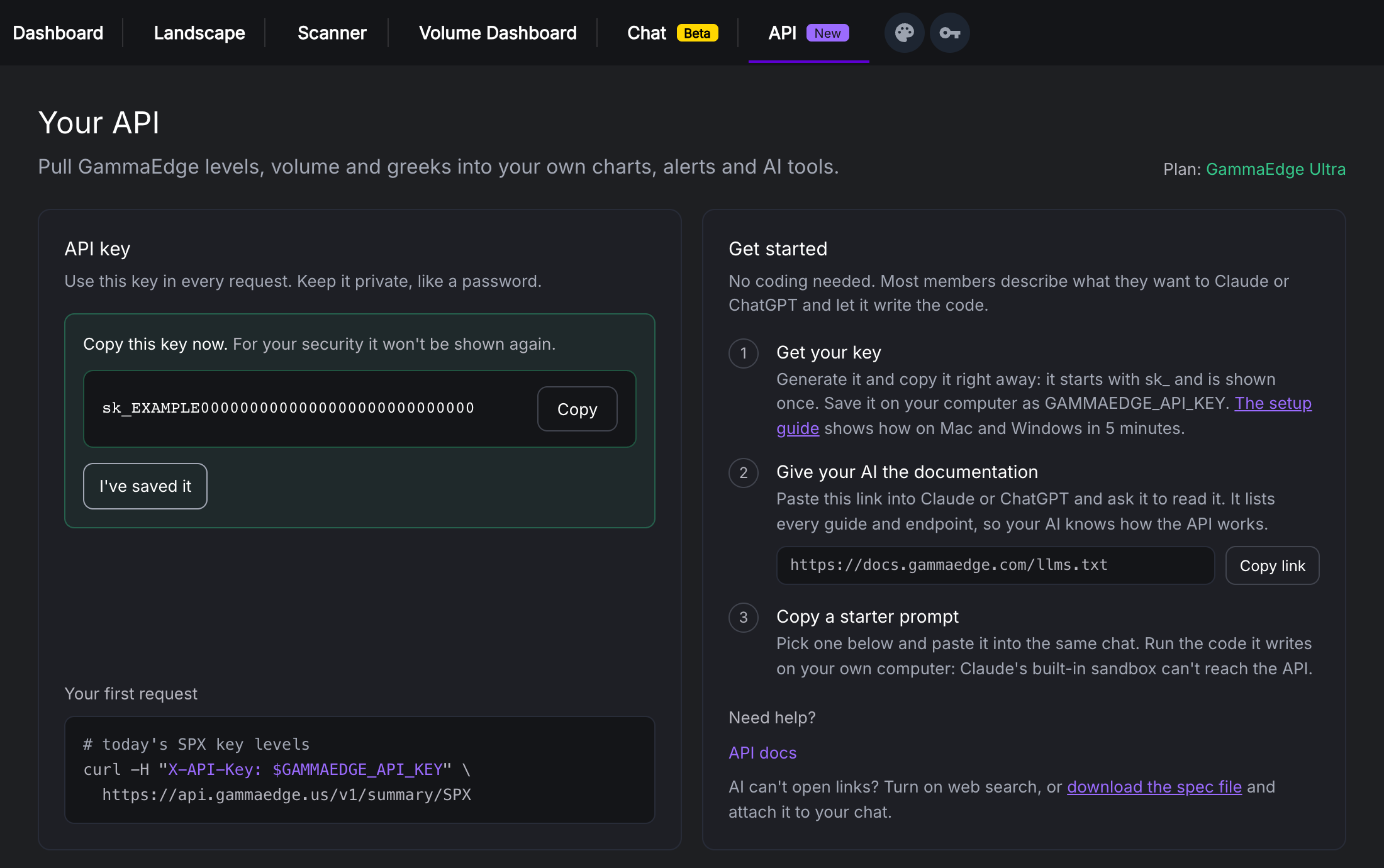
Your API key is the sk_... value shown in the API tab, and nothing else. Send it exactly
as copied, with nothing added before or after it.
Regenerating always revokes your previous key, so update every place the old key was stored before you leave the page.
Request rejected?
If your key is missing, mistyped, or has been replaced, the request is rejected before it reaches any data. Check that:
- the header name is exactly
X-API-Key, - the value is your full
sk_...key exactly as copied, with nothing added and no extra spaces, - you haven't regenerated the key somewhere else (regenerating revokes the old key).