Getting Started
Choose the onboarding track that matches your role.
Onboarding tracks
Non-technical users (API key workflow)
Use this path if you primarily call the API and do not contribute to the platform codebase.
API quick start
This guide takes you from an API key to your first successful response.
1. Get your API key
API access comes with GammaEdge Ultra. Once you have Ultra, getting your key takes about two minutes:
- Claim the API role. Open the GammaEdge API page on Whop, pick your Discord account (or connect one) and click Claim Access. Your API access is tied to that Discord account.
- Sign in to the web app. Go to app.gammaedge.us and sign in with the same Discord account. The first time, you'll be asked to accept the GammaEdge EULA. You need to accept it before you can create a key.
-
Open the API tab (app.gammaedge.us/SPX?tab=api) and click Generate my API key.

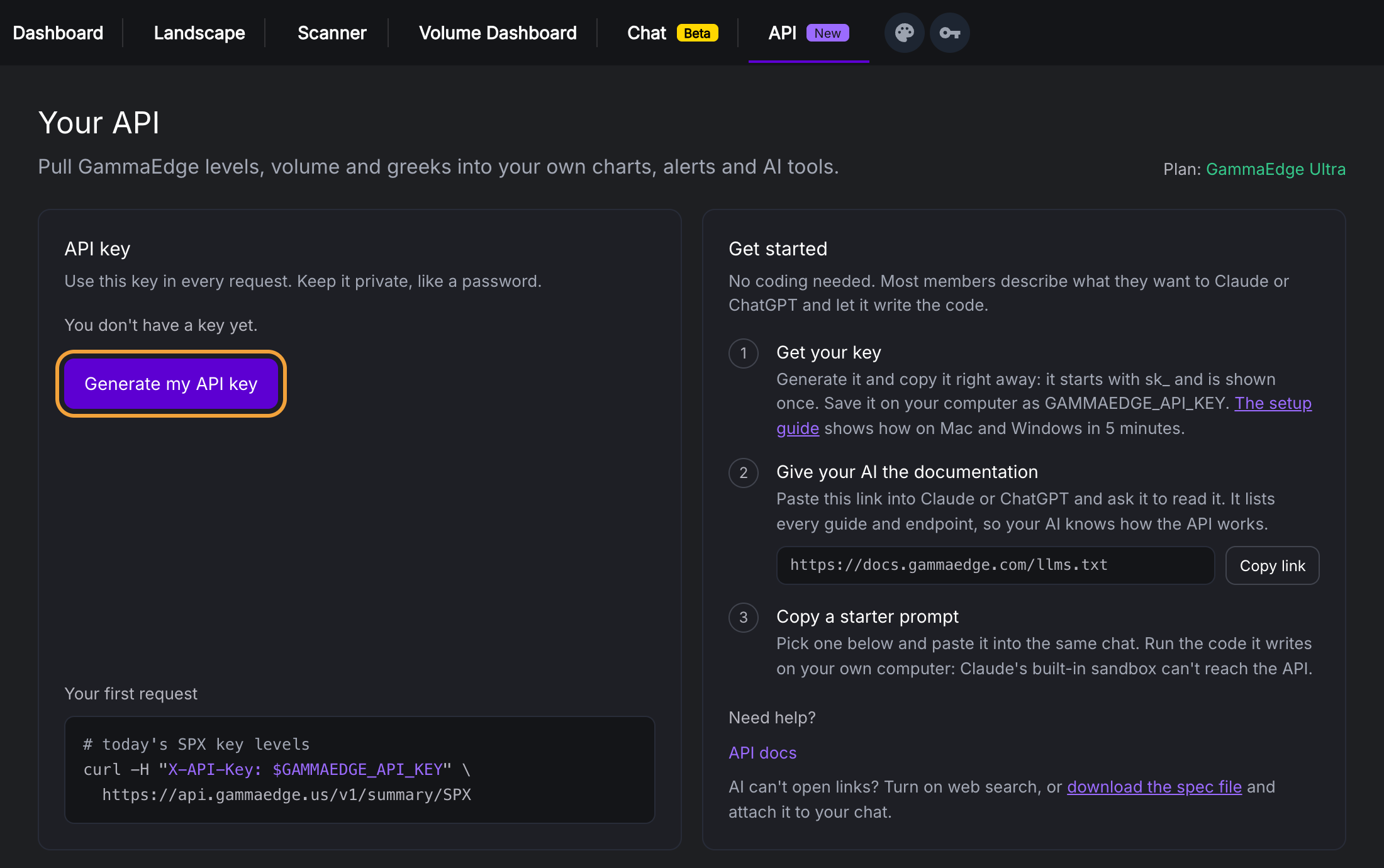 4. Copy your key immediately. It starts with
sk_and is shown only once. It cannot be retrieved again after you leave the page.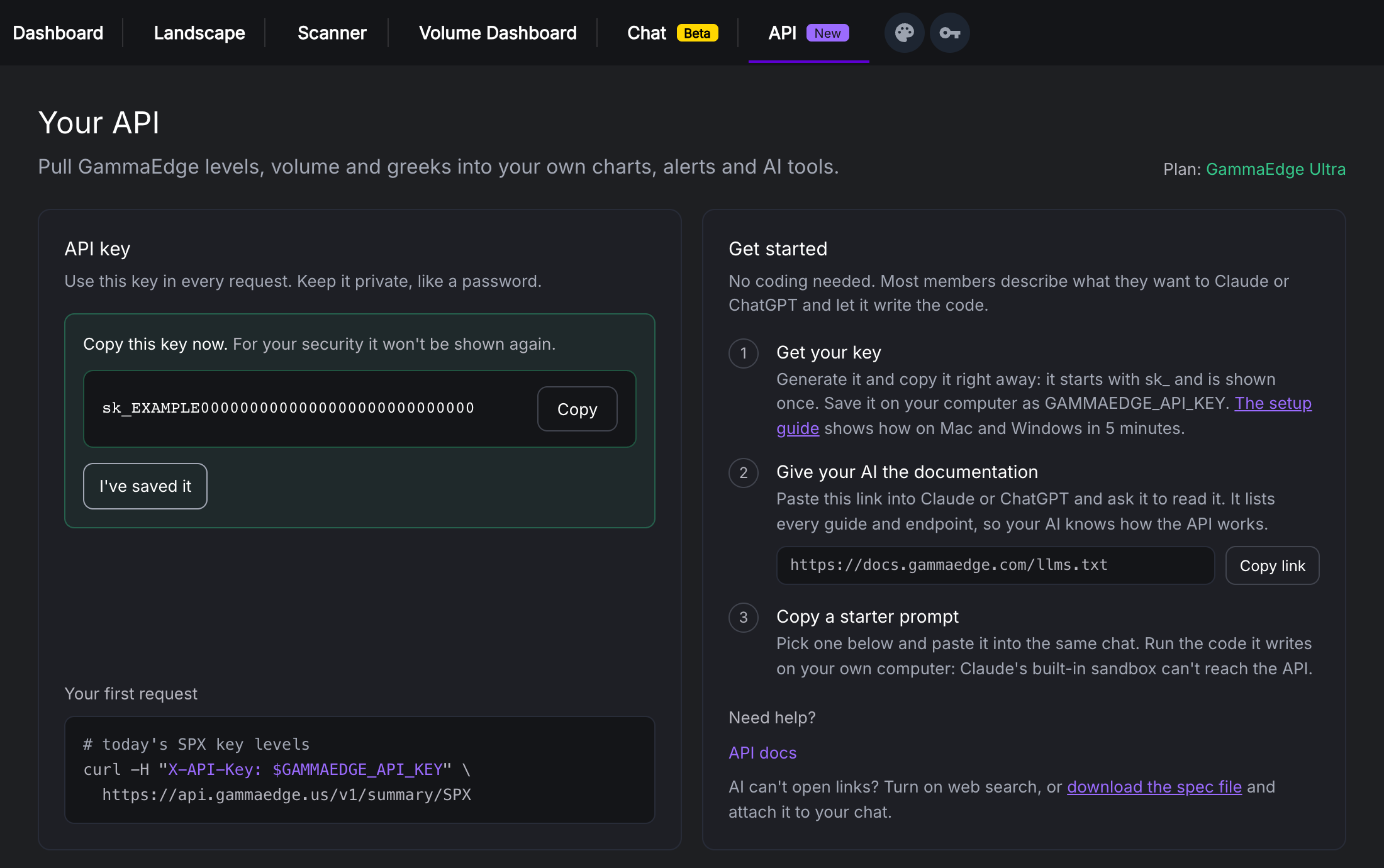 5. Store it somewhere safe, such as a password manager or an environment
variable named
GAMMAEDGE_API_KEY. See Save your key for OS-specific steps that never display or write your key to screen or shell history.
Need a fresh key, or worried yours was exposed? Open the API tab again and generate a new key. The new key replaces your old one, and the old one stops working immediately.
Don't see the API tab? Sign out of the web app and sign back in with Discord after claiming the API role. Still stuck? Email contactus@gammaedge.us with your Discord username.
‼️ Keep your API key secret
Treat your key like a password. Send it only over HTTPS, and never embed it in client-side code, source control, or prompts you share. See Authentication for safe handling.
2. Make your first request
Every endpoint is a GET and every request needs the X-API-Key header.
You run the request by pasting one line into a command window on your computer.
- Press the Windows key, type
cmd, and press Enter. A black window opens: this is Command Prompt. (Use Command Prompt, not PowerShell; the line below is written for Command Prompt.) -
Copy this line, paste it into the window (Ctrl+V or right-click), and press Enter:
- Press Cmd+Space, type
Terminal, and press Return. A window opens: this is Terminal. -
Copy this line, paste it into the window (Cmd+V), and press Return:
The Windows and Mac lines differ only in how the key is written: %GAMMAEDGE_API_KEY%
on Windows, $GAMMAEDGE_API_KEY on Mac and Linux.
It worked if you see a long line of text that starts with
{"status":"completed","ticker":"SPX". That is the SPX summary as JSON.
If you see "Your API key is missing or invalid":
- Close the window and open a new one, then try again. A window that was already open when you saved your key can't see it.
- Check that the key is saved: run the check from
Save your key; it should print
sk_. - On Windows, make sure you used the Windows line (
%GAMMAEDGE_API_KEY%).
3. Handle the response
- Success —
200 OKwith a JSON body specific to the endpoint. - Errors — a JSON body with a stable numeric
error_codeand a plain-languageerror_message. See Error Messages for the full catalog.
Where to go next
- Authentication — key handling in detail
- Rate Limits & Quotas — plan tiers, limits, and checking your usage
- Making Requests — ticker rules, timestamps, and response conventions
- Terminology — what vold, volu, centab, specpa, and slices mean